
Welcome to the instructions for service providers. This page is designed to help you get started with the Zappointments.com web application. Please note that you have access to your schedule whereever you have internet access. As internet access becomes available from more locations, the Zappointments.com service will become more and more useful. For example, you might be on holiday and need to cancel some appointments because you have decided to extend your trip. Canceling your appointments on the system will automatically create an email message that goes out to the client as well as any third party payor involved in their case. This can save time and long distance charges. Clients can book appointments after hours or from anywhere in the world they happen to be. And the zappointments.com service allows them to do so with higher security than if they used a telephone, fax or email to book the appointments. If a client cancels an appointment, any third party payor involved in their case is automatically notified, saving you time. Furthermore, the appointment becomes immediately available to anyone viewing your appointments, and may be booked into even if the cancellation happens after normal business hours.

When you go to the Zappointments.com home page, you see the above menu at the top of the page. On the left side of the page there are links to log in pages. If you have already registered on the system, this is where you would log in. On the right side there are two places for service providers to register. The first one, just below the client registration link, says "Service provider registration, ($300 annual fee applies)". This is the link you would use if you do not have a discount code. If you do have a discount code, however, you would use the next link in the list, which says "or if you have a discount code, enter it here and click register." Either method will bring you to the service provider registration screen, below. How do you get a discount code? Ask around, probably someone in your local area has one. Listserv email lists or bulletin boards for your provincial association are good places to start looking.
 The service provider registration screen allows you to enter all of your information. It lets you enter up to three locations into which people can book appointments. There is a place for you to enter your web page, if you have one. If you leave this blank, the web page will be set to a default page, that you can create using the pagebuilder utility. When you create your account, you will see a screen that says thanks for registering and has a "Paypal subscribe" button on it. You must click on this button to complete your registration.
Paypal is useful for paying for auctions, goods and services over the Internet. They provide a fast, free, and secure way to send money. Complete the registration and payment process through Paypal and then click the continue button on the screen where it says you have successfully made your payment. Clicking on this button completes the subscription process and converts your temporary registration to a permanent registration. Paypal will bill you once per year at the subscription rate. This means that if you have a discount code, you will get the discount every year! If you want to cancel your subscritption, you can do so at paypal.com at any time. This will not refund your payment for the remainder of the year, however. If you have registered in error, you should email zappointments.com staff at admin at zappointments.com. We are unable to give refunds more than 30 days after registration, however.


Please note that this is the screen where you can select what kind of appointment you want to have at any given time. A general type is available for most service providers, as well as specific types such as assessment slots, which may take more time. If the system doesn't have the specific type of appointment you would like to have available, email us, and we'll change the menu. However, it's often best to have more general appointment slots instead of very specific types of appointments, because if you have a specific type of appointment available, it may not be the type of service that potential customers want.

 At left is the screen you get if you press submit. The system has created 184 appointments for you and has skipped 3 statutory holidays. As you can see, this is a very efficient way to set up your regular schedule. Now all that remains is to set up any unusual appontment slots, which can be done from the add one appointment screen. There is a link to this screen at the top of the weekly schedule screen and there is also a link to this screen from the menu of choices you get from the login page.


Below the three links are two links that move you forward and back in time. These are marked "To check the previous two weeks click here" and "To check the next two week, click here". These do exactly what they sound like. Below these links is a sentence that tells you where you are. Below this is another way to log a client in by entering the client's username and province of residence. When you change the province, the form will automatically submit the name on most browsers. If this does not happen, you'll have to click the "submit button" at the right side of the line. Next to the province drop-down box is a drop-down list to choose a third party payor. These include insurance companies, provincial medical plans, and law firms who may choose to pay for your services to the client. When you change this box, the form will automatically submit on most browsers. If this does not happen automatically, you may have to click the "submit" button at the right. If that third party does not have a case or claim number associated with the client, you will get an error message. If you have the case or claim number for that client and third party, you can add it to the client's registration using the link "add a claim number here". You can update the client's registration details as well, using the "update this client's registration here" link. Of course, the client has to be logged in to do this. If the client you want to book is not yet registered, you can register the client using the "register a new client here" link. If you know the client's birthdate, address, phone number, claim numbers (if applicable) and desired username, you can register them on the system quickly and easily. This is advantageous for you because you can then use the invoicing functions to bill the client. It is also advantageous for other service providers on the system, because then your client can use their services as well. If you don't know all of these, you can put in fake values for these and ask the client to fill in the real values when they log in. Please note that sensitive information such as claim or case numbers are encrypted in the database ("encryption of data at rest") to ensure an extra level of security. We are committed to using the highest industry standards of security as we adhere to the highest ethical standards of the professions we serve.
Now lets assume there is a client who has two claim or case numbers with the same agency, which can sometmes happen with Workers' Compensation clients. In this case, when you specify Workers' Compensation, the system will give you a choice of the claim numbers available.

You can see that there is an extra box at the end of the line that says "claim number". When you select the claim number, this box disappears and the selected number shows up in the "current client" window at the top of the page. 
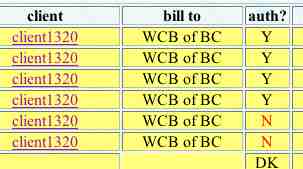
Now that you have selected the client and third party payor, you can book the client in to any of the appointments slots. You simply click on "book" and then click submit at the bottom of the page. You might notice that on regular appointment types, there is a column that says "8, 12, 15". These are links that you can use to select a number of weekly appointments. You can use these to set up 6 weekly appointments, for example. If you click on the 8, you'll get a selection of 8 appointments over about 8 weeks. All of the appointments will be of the same type. For example, if you clicked the 8 beside an acupuncture appointment, only acupuncture appointments will be shown. The system will attempt to select appointments at the same time of day on the same day of the week. If there are no appointments at the same time of day, it will show other appointments of the same type on that day. If there are no open appointments on that day, it will skip that day completely and go to the next week. An example of how this screen looks is shown below:


Now we have covered all of the basic operations of the system from the service provider's point of view. The client's experience and the third party payor's experience of the system will be different and for an understanding of these, you may wish to examine the help files for the client and the third party payor. One of the advantages of being a zappointments.com subscriber is that zappointments.com does direct marketing to insurance companies that can refer directly to you. The system helps save the insurance companies time and therefore money, and our emphasis on security measures appeals to these companies' Information Technology departments. In fact, the system was designed with input from security experts in the insurance field.
The last thing to cover is the invoicing function. This is something that some service providers will never use, but is provided for convenience. From the login page there is a link called "Create invoices from your appointments here". If you click on this link, you'll see the invoicing screen. The screen has a box at the top of the page that lets you select the dates between which you want to count the appointments you have had and create invoices from them. When you select two dates and click "submit", you get a list of invoices that are to be created.

These invoices are not created until you press the button beside each row called "make invoice". You can change the amounts and the type of appointment here. You can also specify whether you want the cheque made out to your company, and which office to send it to, if you have more than one office. Check the GST exempt if the third party payor is GST exempt (for example, Workers' Compensation agencies do not pay GST), or if you are not registered to collect GST. If you have set up your default rates correctly, the amounts should be more or less accurate. You can change the rates for this nvoice on the form for the invoice, but if you want to change the default for all invoices that you create from this point forward, you should change the default rates. You can change your default rates from a link at the top of the invoice creation page, from your login page, or from the To Do List page. The set default rate screen is shown below. As you can see, you can set default rates for any specific types of appointments. Any rates that you do not customize will use the system default rates, which might or might not be accurate.

When you click "make invoice", you will go to a screen that shows the invoice in it's default form as shown below. You can still change the invoice when you go to the review invoices screen.

 If you use the back button, you can get to the create invoices screen again. Each invoice can only be created once. Once you have created all the invoices you want, use the link at the top of the page called "Review your invoices and record payments here" to get to the review invoices screen. Here you again need to specify the time period that you want to review. Once you have specified the time period, all of the invoices created between those dates will show up with four options. The first option is view/print. You can click this radio button and click "go" and you will see the invoice as it currently is. You can then use the print button on your browser window to print the invoice. Before you do that, make sure that your browser is set up so that it does not print headers and footers. Under Internet Explorer, this is done using the Print Preview feature.
The second option is edit. If you click this option and the click the "go" button, you an edit the amounts, payment option, vendor number, etc. for each invoice. This is shown in the picture below.

The third option is "payment", which you use to record a payment you have received from that invoice. The number in the window next to that button is the amount of the payment (set to the total amount of the invoice by default). selecting the "payment" option and clicking "go" records the invoice as paid. If you change the amount, you can record partial payments, overpayments, or refunds. Finally, there is the delete button, when you want to delete the invoice from the system.
Now you should have a good idea of how to use the zappointments system. It's easy when you get used to it. The zappointments system is accessible from anywhere, is a form of internet advertising, lets third party payors book directly into your appointment times, and lets you concentrate on your practice. You'll find the invoicing functions are quick and easy ways to create and manage your invoicing and payments. The reminders are also very useful to keep you up to date with day to day tasks. If you don't have a web page, the pagebuilder is an extremely simple and fast way to get information out to people looking for your services, and it is free of charge.